Visible watermark cleanup

Image Watermark Remover with a precise manual mask

Paint over a visible logo, text stamp, date mark, or repeated pattern that you are authorized to edit. The image watermark remover keeps the manual selection visible, rebuilds only the marked pixels, and lets you inspect the image watermark remover result before downloading.

Manual selection you can inspect Authorization confirmation Preview before export

Authorized cleanup

Image watermark remover examples for authorized files

These comparisons show how an image watermark remover can isolate a visible overlay across products, illustrations, decorative artwork, portraits, and larger compositions. Build a precise mask, give the image watermark remover useful surrounding context, and compare the rebuilt area with the untouched image before export.

Use the image watermark remover on product photos
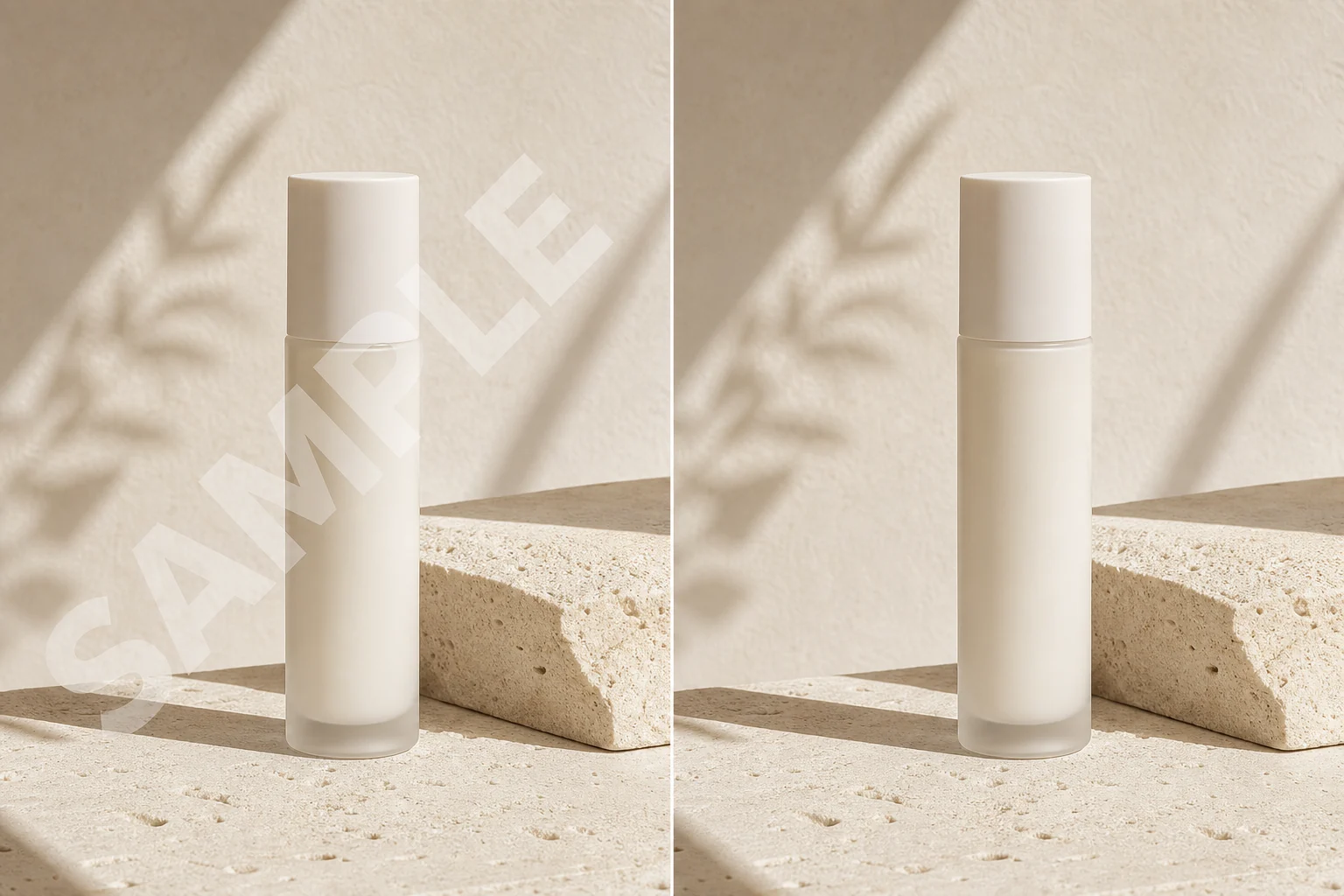
BeforeAfter

Authorized cleanup

Use the image watermark remover on product photos

An authorized product photo may need a visible campaign stamp, date, or temporary overlay removed before it can be reused. Paint the complete mark with the image watermark remover so the model can rebuild bottle edges, stone texture, reflections, and natural shadows beneath it. A precise image watermark remover mask helps protect product contours and nearby label detail that should remain unchanged.


Clean visible marks from detailed illustrationsClean visible marks from detailed illustrations
SAMPLE
BeforeAfter

Authorized cleanup

Clean visible marks from detailed illustrations

Detailed illustrations combine line work, color transitions, and repeated painted texture, so broad selections can erase too much context. Use the image watermark remover to trace the authorized visible mark closely, including softened letter edges. After the image watermark remover finishes, compare outlines, color continuity, and storybook texture with the original before using the cleaned art in a new layout.

Remove an overlay from decorative artworkRemove an overlay from decorative artwork
SAMPLE
BeforeAfter

Authorized cleanup

Remove an overlay from decorative artwork

Decorative portraits and painted artwork often place visible marks across hair, ink, fabric, or textured backgrounds. Zoom in, reduce the brush size, and let the image watermark remover target only the overlay. The image watermark remover uses nearby pixels as reconstruction context, so a careful mask can preserve more of the artwork's visual rhythm than a broad rectangular selection.

Prepare an authorized portrait for reusePrepare an authorized portrait for reuse
SAMPLE
BeforeAfter

Authorized cleanup

Prepare an authorized portrait for reuse

When you have permission to reuse a portrait, cover the complete visible mark while avoiding eyes, lips, hair boundaries, jewelry, and other identity-sensitive details whenever possible. The image watermark remover rebuilds the selected pixels rather than editing the whole portrait. Inspect the image watermark remover result at full size before using it in a profile, campaign, or editorial layout.

Clean larger creative compositions carefullyClean larger creative compositions carefully
SAMPLE
BeforeAfter

Authorized cleanup

Clean larger creative compositions carefully

Large compositions can contain water, foliage, architecture, fabric, and other textures beneath one visible overlay. Work section by section with the image watermark remover so each mask stays precise and easy to review. After the image watermark remover reconstructs the area, compare repeated lines, reflections, and fine texture with the original, and keep the source file available for reference.

Manual, visible control

An image watermark remover without a hidden selection

The image watermark remover uses an intentionally manual workflow. You can see and refine the mask, confirm that you may modify the file, choose exactly which visible pixels can be rebuilt, and review the image watermark remover output before export.

01

Visible watermark guidance

The image watermark remover is designed for visible logos, text stamps, dates, corner badges, and repeated patterns rather than generic full-scene editing. Clear guidance keeps the workflow focused on the marked overlay.

02

Editable manual mask

Zoom, pan, brush, unmark, undo, redo, and brush-size controls help the image watermark remover cover the complete mark while avoiding nearby faces, lettering, product edges, and delicate illustrated detail.

03

Rights confirmation

The image watermark remover keeps cloud processing disabled until you confirm that the file is yours or that you are authorized to modify it. Your image and mask stay in the editor while you sign in.

04

Review before export

Inspect the image watermark remover result at full size, compare reconstructed texture with the original scene, and refine the mask when an edge was missed before saving the finished image.

Three-step workflow

How to use the image watermark remover

Use the image watermark remover in three controlled steps: confirm that you may edit the file, mark the complete visible watermark carefully, and review the reconstructed texture before you download the result.

01

Upload an authorized image

Choose a PNG, JPEG, or WebP file that you created, own, licensed, or have permission to modify. The image watermark remover creates a local preview first, so you can inspect the source before processing.

02

Cover the visible mark

Adjust the brush and paint over every visible letter, logo edge, date, or repeated mark. A precise image watermark remover mask should cover the overlay completely while preserving as much nearby image detail as possible.

03

Confirm and process

Accept the authorization statement, start one cloud task, and compare the rebuilt area with the source. Inspect faces, text, repeated geometry, and texture before downloading the image watermark remover result.

Related image tools

When the image watermark remover has rebuilt an authorized selection, clean another distraction, enlarge the result, or prepare a new background with these related tools.

Image watermark remover questions

Learn how the image watermark remover uses a manual mask, authorization confirmation, cloud reconstruction, credits, and full-size review to produce a cleaner result.

What kinds of visible watermarks can I mark?

The image watermark remover can process visible text, logos, date stamps, corner badges, and repeated graphic patterns that you manually cover. The model can rebuild only the pixels inside the mask, so make sure the image watermark remover selection includes the complete visible mark and its softened edges.

Does this tool automatically detect watermarks?

No. The image watermark remover uses a manual, editable mask so you can inspect and correct the full selection before cloud processing begins. This visible workflow gives you control over the exact area rather than presenting an automatic detector that has not been validated.

Can it remove SynthID or C2PA information?

No. The image watermark remover edits visible image pixels selected by the manual mask. It does not claim to remove invisible SynthID signals, C2PA credentials, or other provenance information attached to a file.

Why must I confirm authorization?

Watermarks can communicate ownership or licensing. Before using the image watermark remover, confirm that you created the image, own it, licensed it, or have explicit permission to modify the visible mark.

Will a repeated or full-image watermark disappear perfectly?

Not always. Repeated marks, large transparent overlays, detailed lettering, and masks that cover important subject features are difficult reconstruction cases for an image watermark remover. Work carefully, review the output at full size, and keep the original file for comparison.

Remove a visible mark with a selection you control

Open one authorized image, paint the complete visible watermark, and let the image watermark remover rebuild the selected pixels. Review the reconstructed area carefully before you export.

Open manual watermark mode