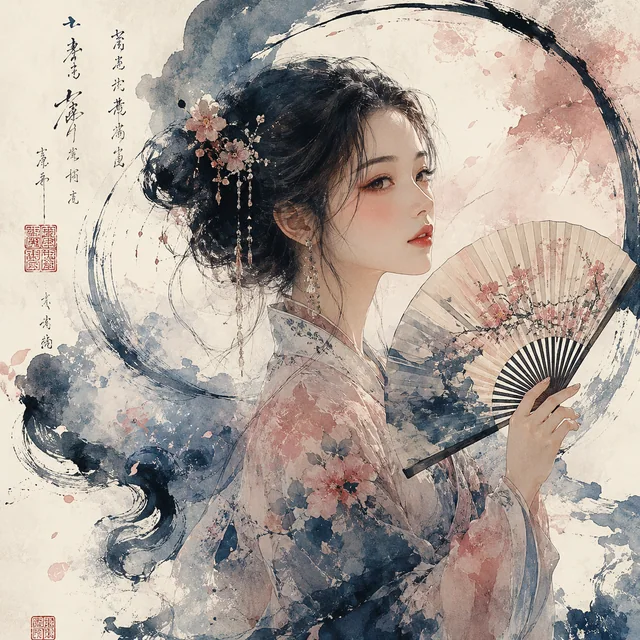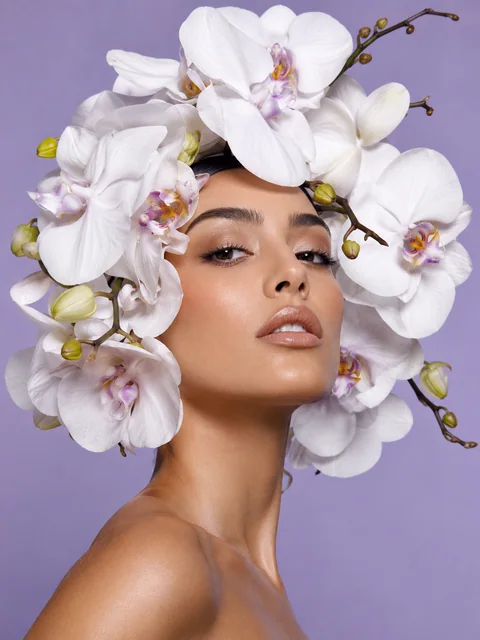
AI detail recovery

AI Image Upscaler for sharper, larger images

Turn a small, soft, or compressed photo into a cleaner high-resolution image with an AI image upscaler. Choose 2X for everyday web and presentation work, or let the AI image upscaler create a 4X result when you need more room for product pages, print layouts, and creative crops.

2X and 4X output Natural texture recovery Authenticated result download
Choose an image
Original4X detail

Real-world enhancements

See what an AI image upscaler can improve

A useful AI image upscaler does more than stretch a file. The comparisons below show how an AI image upscaler can increase image resolution while keeping edges readable, textures believable, and color consistent across portraits, products, artwork, and campaign graphics. Results still depend on the quality of the source image.

Sharpen product details with an AI image upscaler
OriginalUpscaled

Real-world enhancements

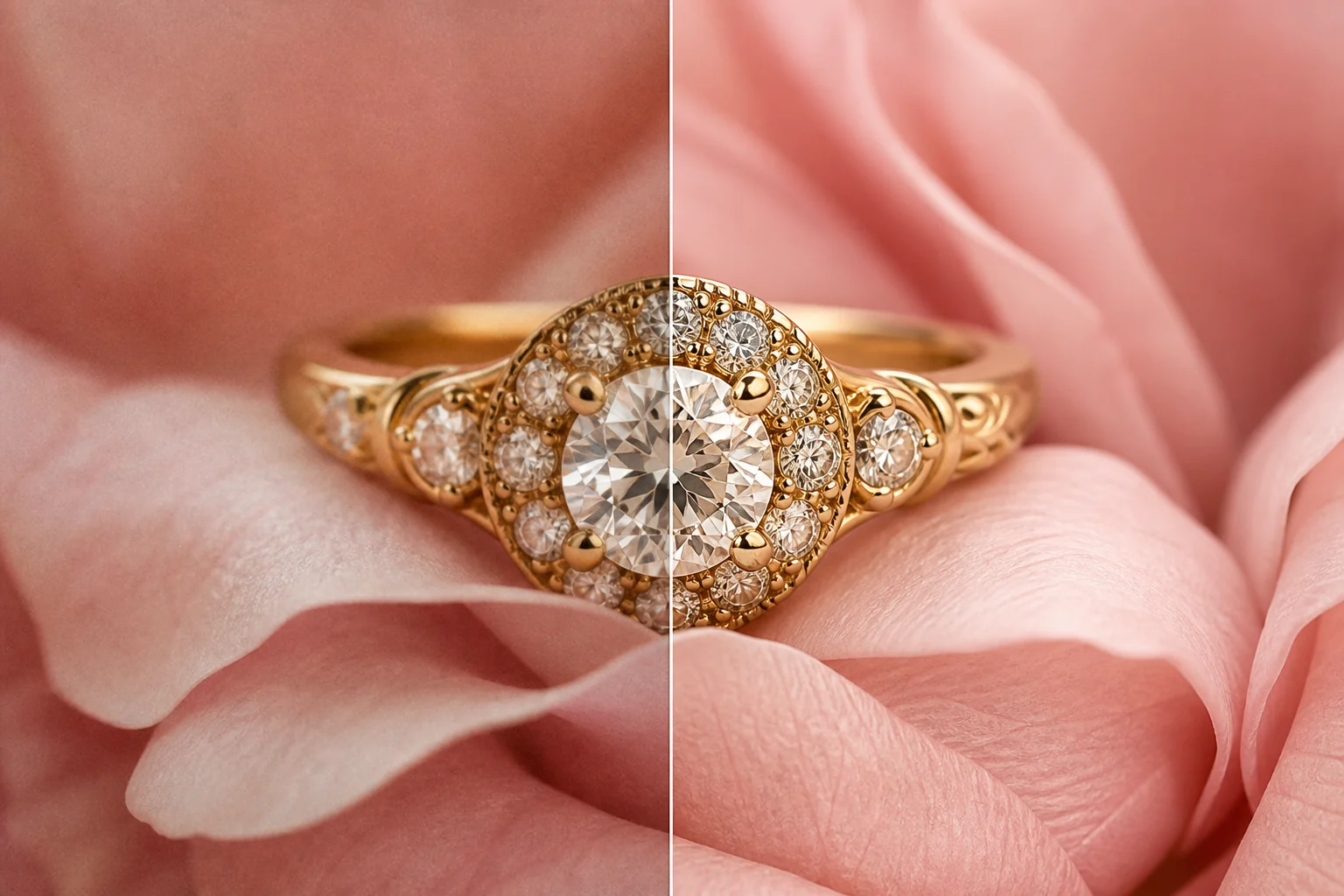
Sharpen product details with an AI image upscaler

Product listings depend on small details such as gemstone facets, metal engraving, fabric weave, labels, and clean silhouette edges. The AI image upscaler increases resolution while rebuilding those visual cues, which gives catalog crops and campaign layouts more room to work. Use the AI image upscaler before placing a small supplier photo into a larger card, banner, or zoomable product gallery.
Refresh old portraits with the AI image upscaler
OriginalUpscaled

Real-world enhancements

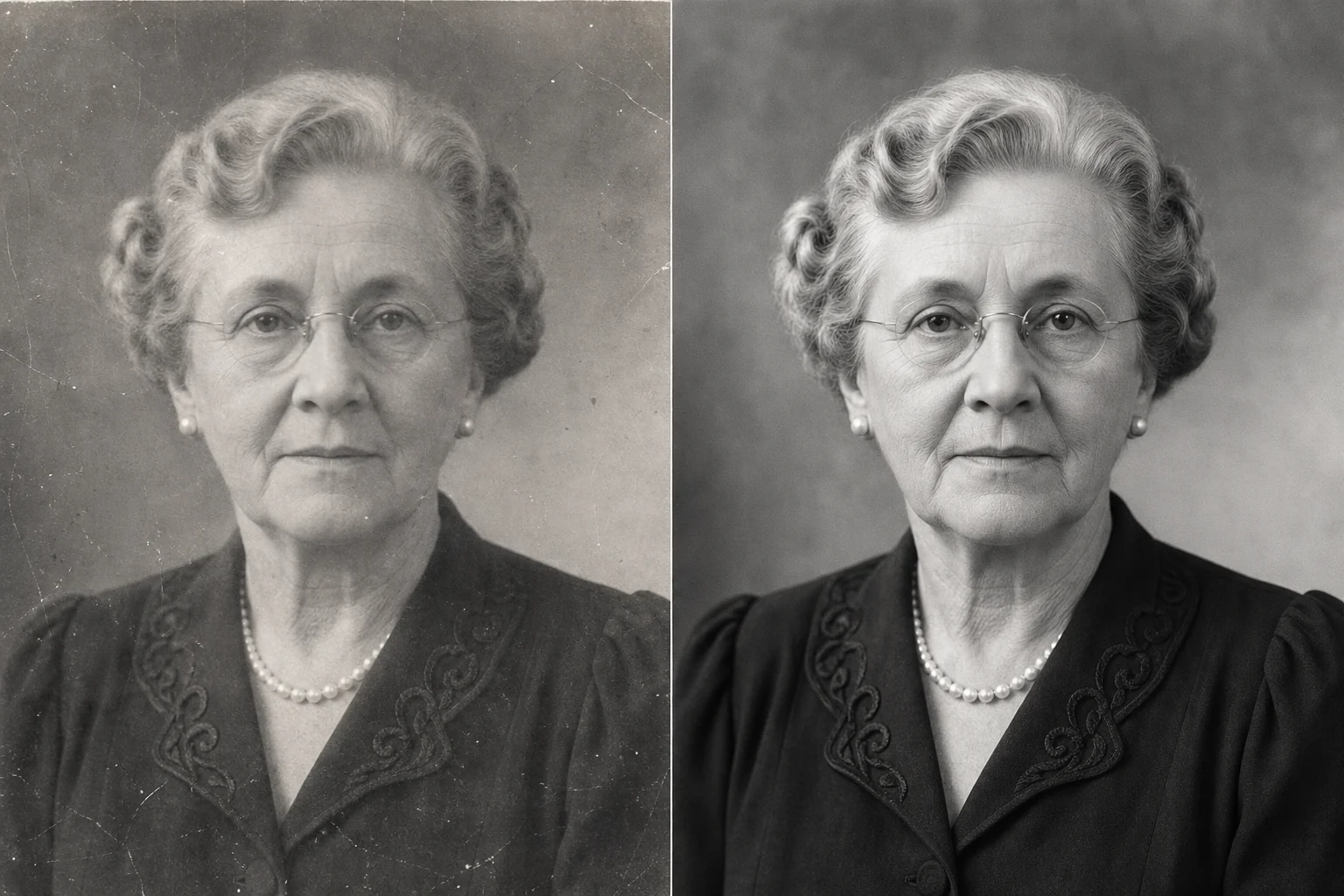
Refresh old portraits with the AI image upscaler

Archival scans often combine low resolution, faded contrast, soft faces, and paper texture. The AI image upscaler can enlarge the portrait while improving edge separation in hair, clothing, and facial features. A careful AI image upscaler pass makes the file easier to use in family albums, memorial layouts, and digital archives without turning the original character into an aggressively sharpened filter.

Upscale illustrations for larger displaysUpscale illustrations for larger displays
OriginalUpscaled

Real-world enhancements

Upscale illustrations for larger displays

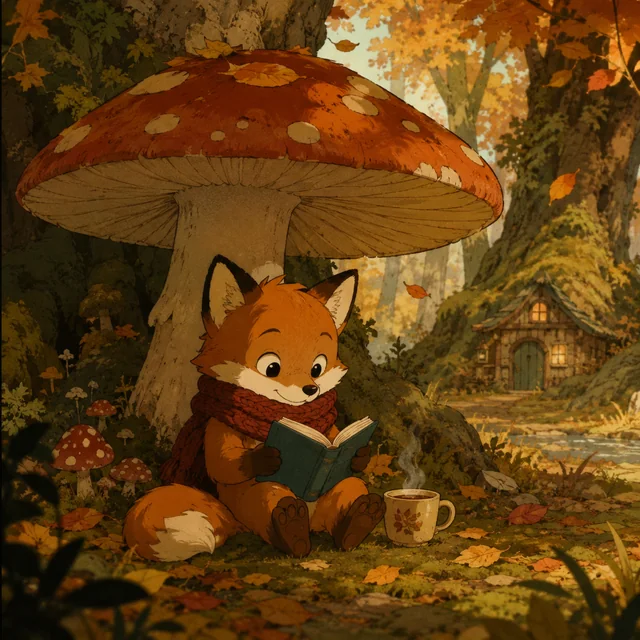
Small illustrations can lose line quality and painted texture when they are stretched for a poster or presentation cover. The AI image upscaler studies edges, color transitions, and repeated brush detail before creating a larger result. Use the AI image upscaler to prepare artwork for high-resolution screens, print mockups, or editorial layouts, then inspect lettering and delicate line work before final production.

Create cleaner portrait crops with AI upscalingCreate cleaner portrait crops with AI upscaling
OriginalUpscaled

Real-world enhancements

Create cleaner portrait crops with AI upscaling

A portrait that looks acceptable as a thumbnail may become soft when cropped for a profile page, speaker card, or print composition. The AI image upscaler creates more pixels around the face, hair, and clothing so the crop has room to breathe. Compare the AI image upscaler result at 100% and check eyes, teeth, jewelry, and fine hair before publishing.

Prepare social and campaign visuals at higher resolutionPrepare social and campaign visuals at higher resolution
OriginalUpscaled

Real-world enhancements

Prepare social and campaign visuals at higher resolution

Downloaded graphics and older campaign assets often carry compression blur that becomes obvious in a new layout. The AI image upscaler can enlarge these files for feeds, thumbnails, ads, and presentation slides while recovering cleaner visual separation. Run the AI image upscaler before the final resize, then check logos, embedded text, gradients, and subject edges in the finished composition.

An AI image upscaler built for useful high-resolution results

The AI image upscaler keeps enlargement choices, source dimensions, result comparison, and protected delivery in one focused workflow, so you can upscale an image without moving between several editing tools.

True 2X or 4X dimensions

The AI image upscaler shows the exact target width and height before you spend credits. Choose 2X for a balanced increase or 4X for a substantially larger file, then compare the original and upscaled result in the same workspace.

Detail without harsh halos

Instead of applying a harsh sharpening filter, the AI image upscaler reconstructs texture and edge definition for portraits, products, artwork, and everyday photos. The goal is a larger image that still looks balanced rather than brittle or artificially crisp.

Account-protected delivery

When the AI image upscaler finishes, the result is copied into managed storage and delivered through an authenticated download route. Your task status remains linked to your account, helping prevent another visitor from claiming the generated file.

How to upscale an image with the AI image upscaler

The AI image upscaler uses a short, predictable workflow: choose a clean source, select the enlargement factor, review the generated detail, and download only after the higher-resolution result looks right.

01

Upload a clean source

Choose a JPEG, PNG, or WebP file and start with the least compressed version available. A clearer source gives the AI image upscaler more reliable edges, texture, and color information to work with.

02

Choose 2X or 4X

Use 2X for websites, stores, and presentation work, or choose 4X when the original is genuinely small. The AI image upscaler displays the target dimensions before the cloud task begins.

03

Compare and download

Switch between the original and enhanced preview, inspect faces, text, and fine edges, then download the high-resolution result. This final check helps you decide whether the AI image upscaler produced a file suitable for your intended use.

Related image tools

Use the AI image upscaler before a background cutout, a prompt-guided redesign, or precise object cleanup so the next step starts with a clearer source.

AI image upscaler questions

Learn how the AI image upscaler changes dimensions, handles source files, reconstructs detail, uses credits, and prepares the finished image for download.

What is the difference between 2X and 4X upscaling?

A 2X upscale doubles both width and height, producing four times as many pixels. A 4X upscale multiplies each dimension by four and creates sixteen times as many pixels. Because the AI image upscaler must reconstruct much more information at 4X, that setting is most useful for genuinely small sources and should be checked carefully at full size.

Can AI restore details that are completely missing?

The AI image upscaler can infer plausible texture, reduce visible compression, and create cleaner edges, but it cannot recover factual information that the source never captured. Treat generated micro-detail as a visual reconstruction, and always review faces, text, product labels, and tiny logos before professional use.

Which images work best?

Clear portraits, product photos, illustrations, and lightly compressed images generally give an AI image upscaler useful structure to follow. Heavy motion blur, extreme JPEG artifacts, very small text, or clipped highlights may remain limited by the source even after image upscaling.

How are my images handled?

The source is uploaded to project storage and shared with KIE so the AI image upscaler can run the cloud task. Task polling and result downloads verify your account. As with any cloud AI image upscaler, avoid uploading confidential, regulated, or highly sensitive material.

Why does the tool require credits?

The AI image upscaler uses a paid Topaz cloud model, so each generation consumes the credit amount displayed before processing. The server fixes the model and price, records one idempotent task, and refunds consumed credits when the provider reports a definitive failure.

Give a small image the resolution it deserves

Upload one source, choose the output size, and let the AI image upscaler prepare a larger version. Compare the difference at full size and keep the high-resolution result when it looks right.

Upscale an image