Prompt-based image editing

AI Image Editor for text-guided photo edits

Upload an existing image and tell the AI image editor what should change in plain language. Use the AI image editor to adjust atmosphere, lighting, color, composition, styling, backgrounds, or specific visual details without rebuilding the complete scene from scratch.

Natural-language control Image-to-image consistency Authenticated result download
Choose an image
Your imagePrompt edit

Creative transformations

Practical edits you can create with an AI image editor

These comparisons show how an AI image editor can restyle a room, recolor fashion, simplify a portrait background, polish a pet photo, or explore a new campaign direction. Give the AI image editor one direct instruction, name the details that must stay, and use the original image as visual context.

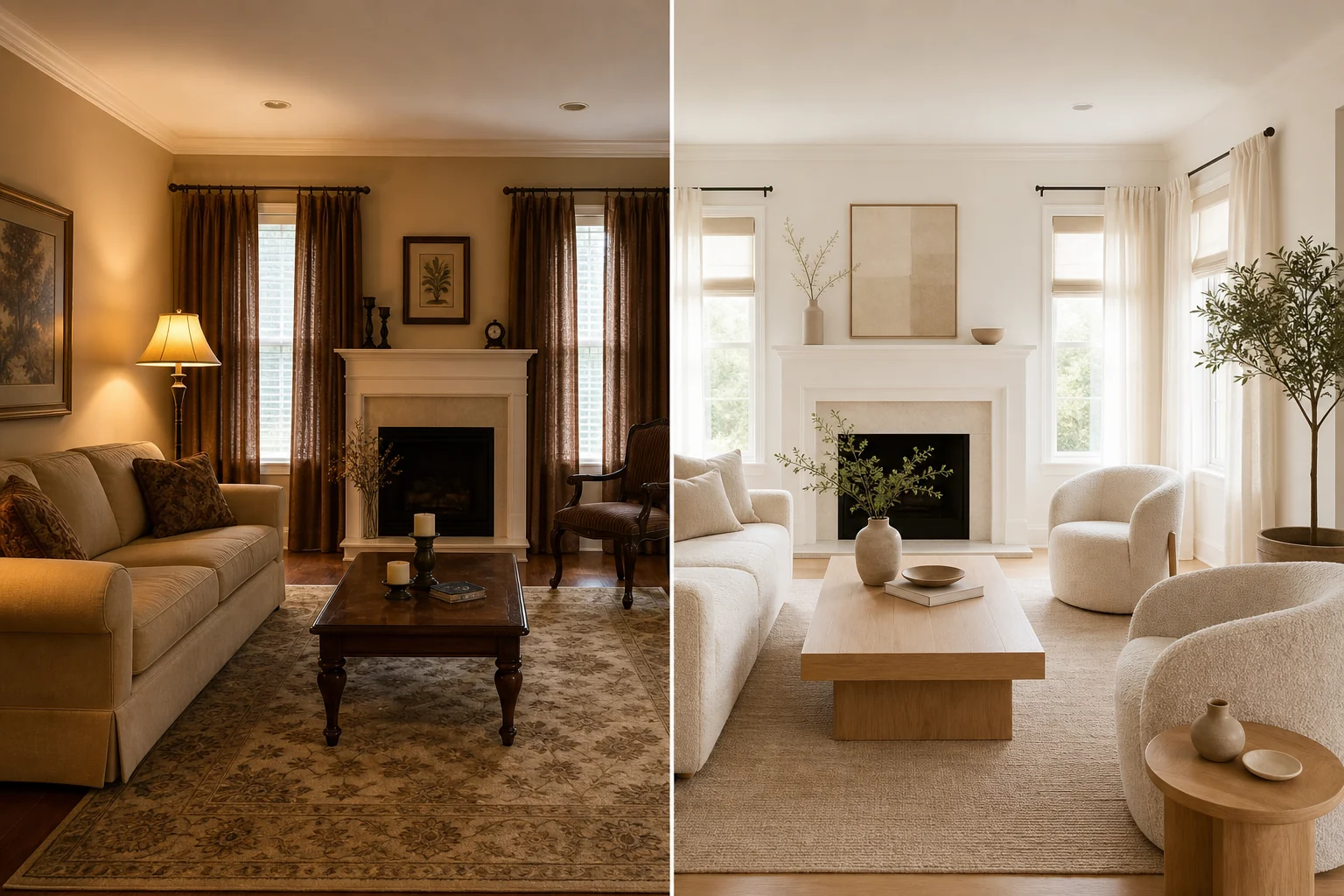
Redesign an interior with an AI image editor
OriginalEdited

Creative transformations

Redesign an interior with an AI image editor

Upload a room photo and ask the AI image editor for a modern, Scandinavian, warm minimal, or luxury direction while keeping the windows, perspective, and core architecture recognizable. The AI image editor uses the existing space as context, so you can test furniture, materials, lighting, and color ideas before committing time or budget to a redesign. State clearly which structural details must remain unchanged.
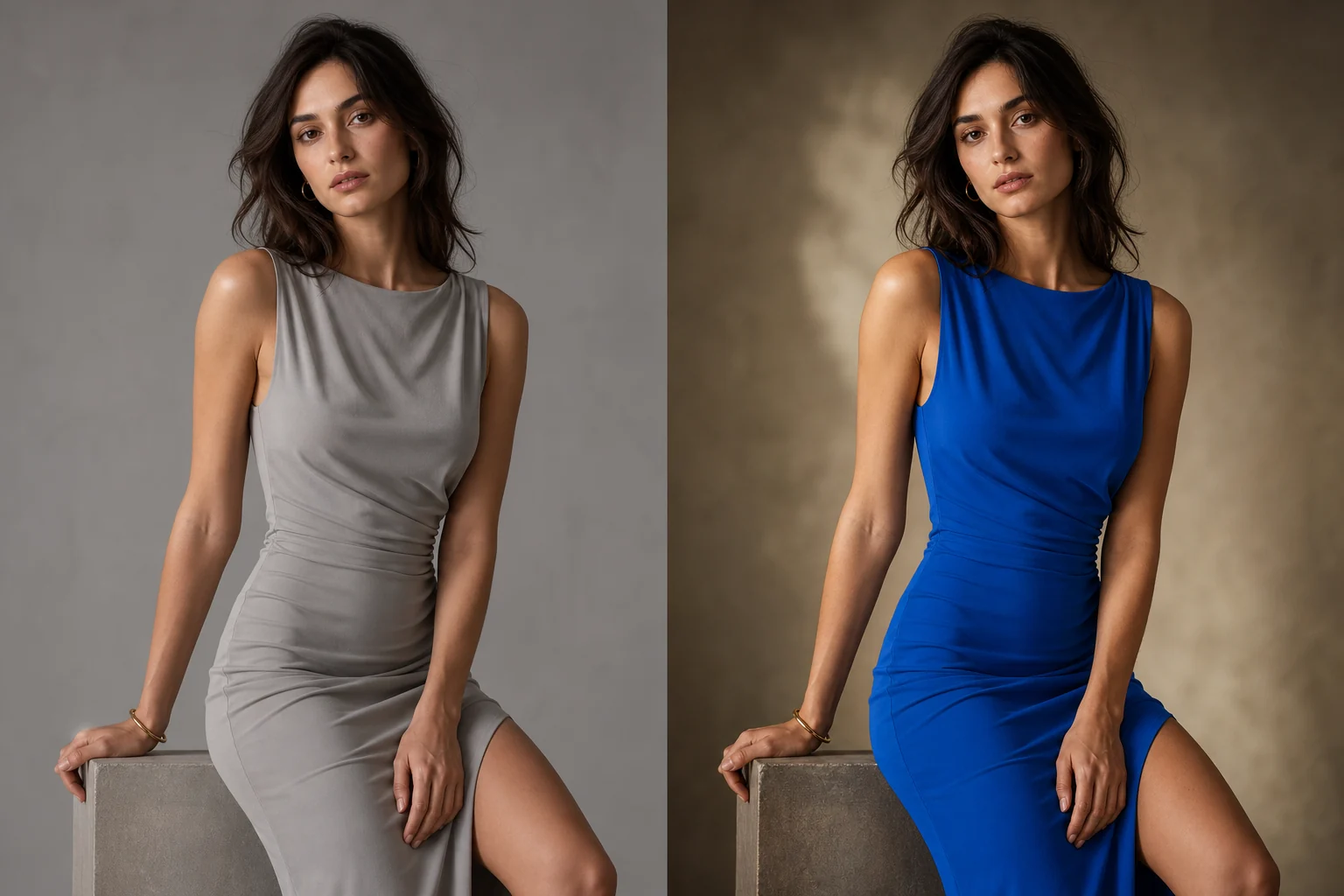
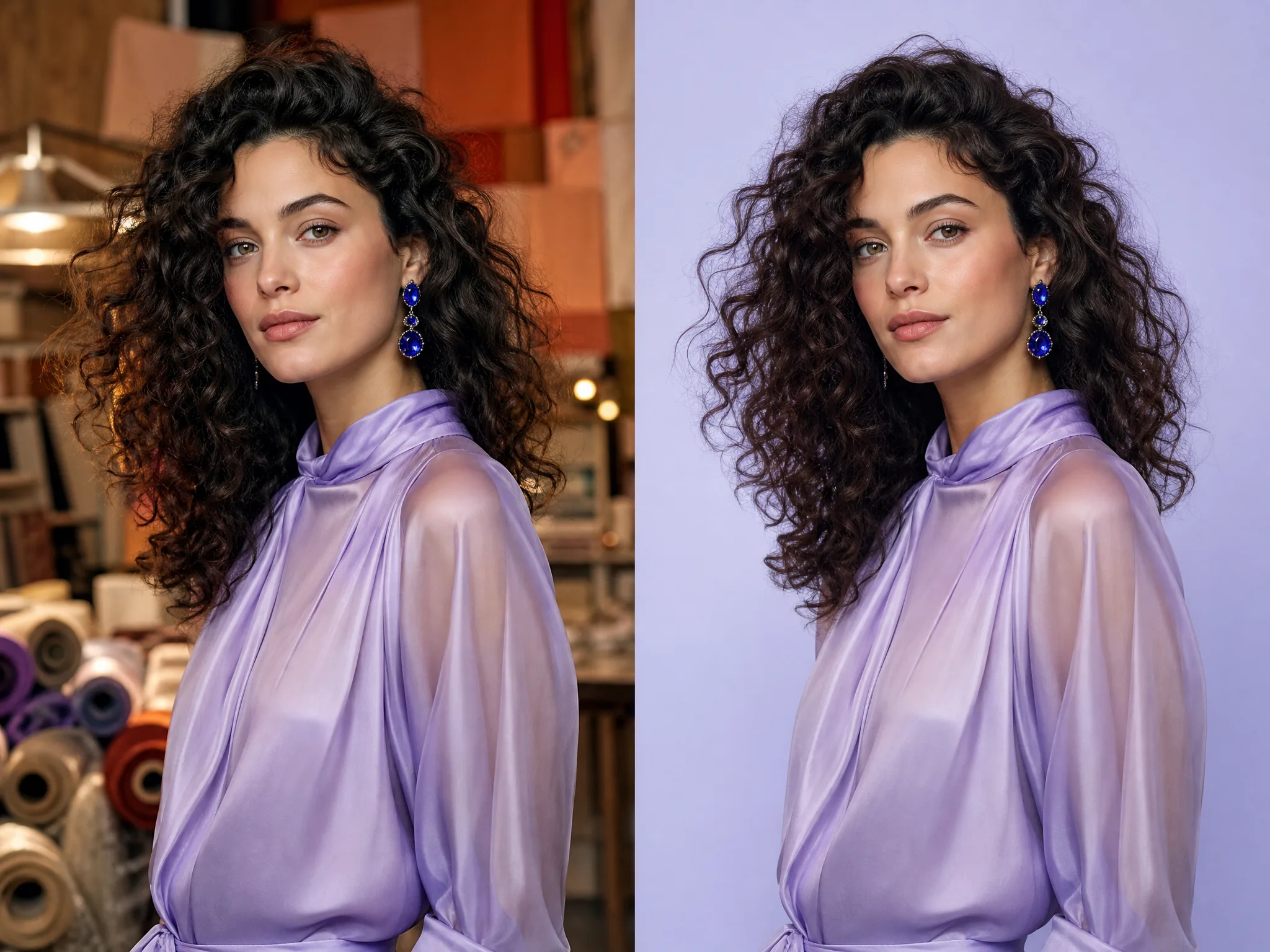
Change fashion color and campaign mood
OriginalEdited

Creative transformations

Change fashion color and campaign mood

Use the AI image editor to recolor an outfit, shift the lighting, or create a more cinematic campaign grade without starting from a blank canvas. A focused prompt can ask the AI image editor to preserve the model, pose, garment shape, and framing while changing only color and atmosphere. Review skin tone, fabric texture, hands, accessories, and branded details before using the result.

Create a studio-ready portrait with the AI image editor
OriginalEdited

Creative transformations

Create a studio-ready portrait with the AI image editor

A distracting environment can weaken an otherwise strong portrait. Ask the AI image editor to create a clean studio, editorial wall, or campaign backdrop while keeping the subject and crop consistent. The AI image editor can also refine the lighting direction and color palette, giving profile photos, creator assets, and promotional graphics a more deliberate visual identity without a manual layer-by-layer composite.

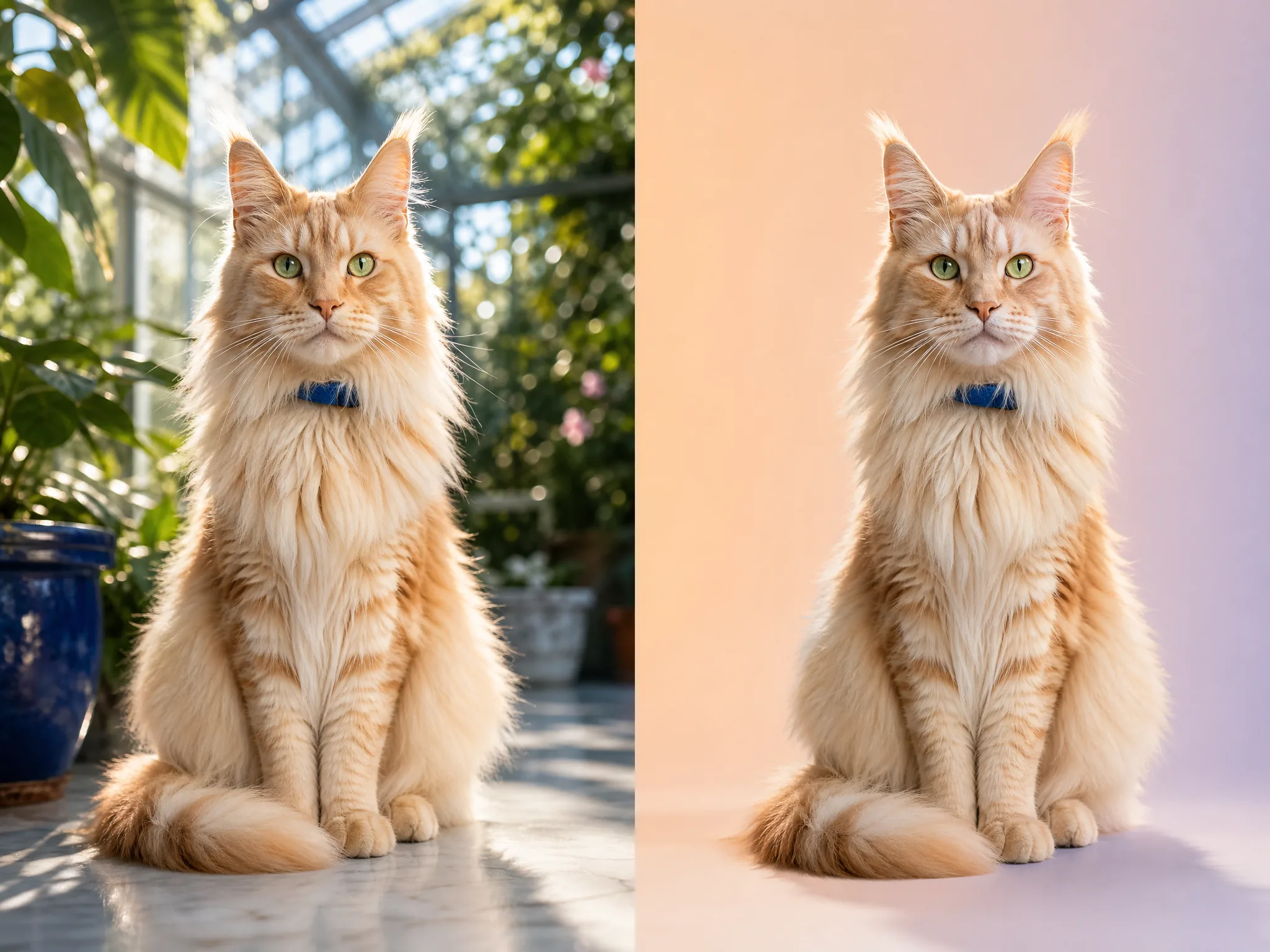
Build a polished pet portrait
OriginalEdited

Creative transformations

Build a polished pet portrait

Move a pet from a busy snapshot into a softer editorial setting for cards, social posts, or keepsake prints. Tell the AI image editor to preserve coat color, markings, pose, and expression while changing the environment and lighting. Because fur and facial details are identity-sensitive, compare the AI image editor result closely with the original before sharing or printing it.

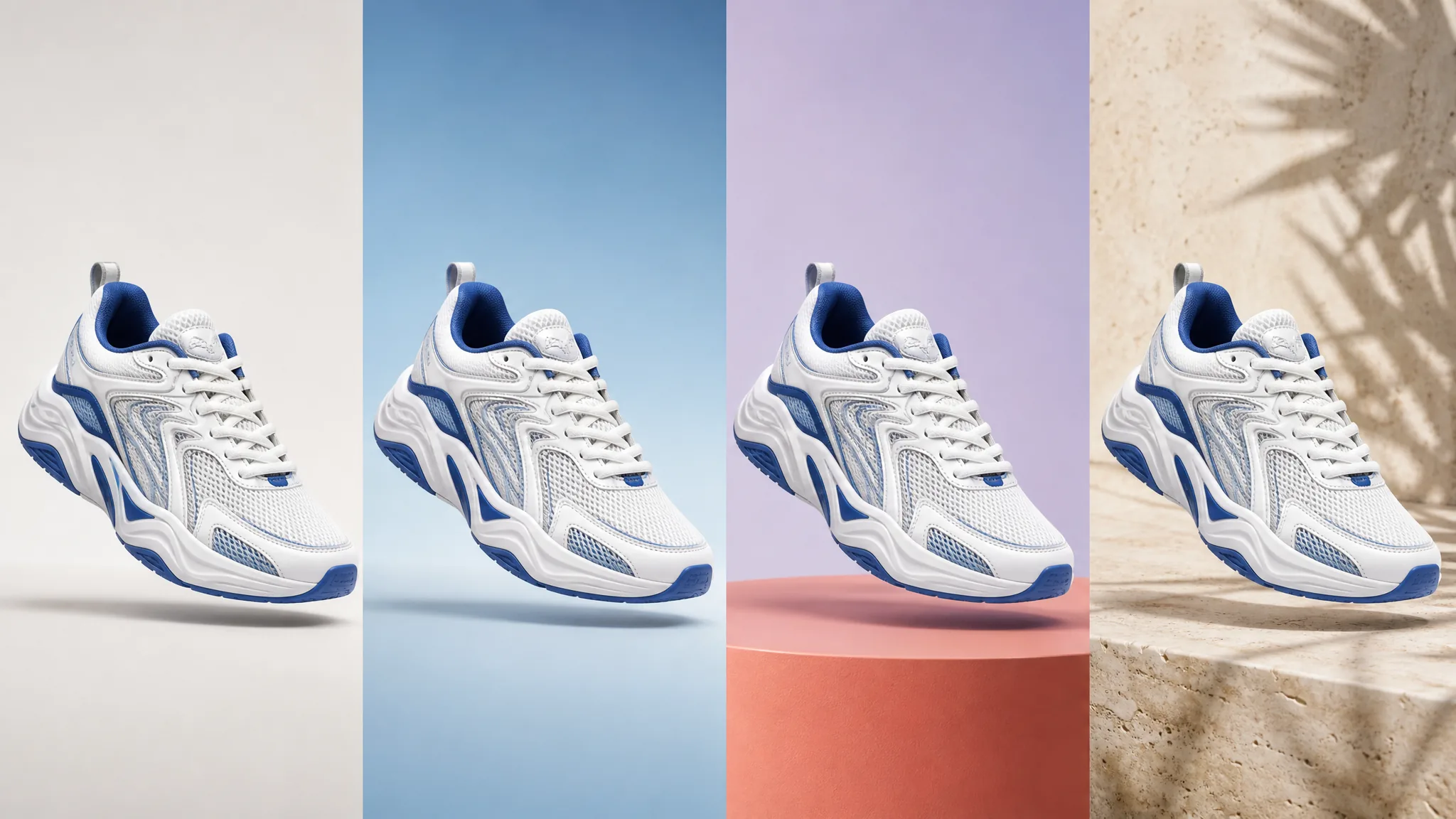
Explore several backgrounds from one source image
OriginalEdited

Creative transformations

Explore several backgrounds from one source image

Keep one approved composition as the anchor, then use the AI image editor to explore warm, cool, minimal, seasonal, or brand-colored backgrounds. The AI image editor makes it faster to test visual directions for ads, landing pages, thumbnails, and product stories without rebuilding the subject placement by hand. Run one clear direction at a time so each result remains easy to compare.

Creative control from one focused AI image editor

The source image, written instruction, generated result, and revision choices stay inside one calm AI image editor workspace instead of being scattered across layers, masks, filters, and separate desktop applications.

Edit in everyday language

Tell the AI image editor how the lighting, background, color, styling, materials, or composition should change. You can describe the desired visual result without learning masks, layers, blend modes, or a complex desktop editing interface.

Keep the source as context

The AI image editor sends the original image together with your instruction, so the image-to-image model can reference the existing subject, framing, and structure. Clear constraints such as “keep the face and pose unchanged” help preserve important context.

Review before you download

Switch between the source and the result produced by the AI image editor. Inspect identity, text, product details, and composition, refine the prompt when needed, and download only the version that matches your intended direction.

How to edit a photo with the AI image editor

A clear source image and one precise instruction are usually enough to start. The AI image editor uses both inputs together, giving you a simple upload, prompt, compare, and refine workflow.

01

Upload the source image

Choose the clearest version available. The source gives the AI image editor its people, objects, framing, lighting, and overall visual context, so avoid heavily compressed files when a better original exists.

02

Write one specific instruction

Tell the AI image editor what should change and what must stay. Concrete instructions such as “use a warm studio background but keep the product unchanged” reduce ambiguity and make the generated direction easier to evaluate.

03

Compare, refine, and download

Inspect the AI image editor result beside the original at full size. If the direction is close but not complete, make the next prompt more specific, run a new task, and compare the versions before downloading.

Related image tools

Pair the AI image editor with resolution enhancement, background separation, or precise object cleanup when the source needs focused preparation before a broader creative edit.

AI image editor questions

Practical guidance for writing AI image editor prompts, preserving important details, handling cloud files, choosing a model, and reviewing generated results.

What can I change with a text prompt?

The AI image editor can change lighting, backgrounds, colors, atmosphere, materials, styling, composition, and visible objects. Complex requests are more reliable when you give the AI image editor one clear visual objective at a time and explicitly name the parts that should remain unchanged.

How do I keep part of the image unchanged?

State the constraint directly, such as “keep the face, pose, and clothing unchanged.” The AI image editor still generates a new image rather than editing deterministic pixels, so inspect identity-sensitive, factual, branded, and text details before publishing.

Does the editor support masks or layers?

This AI image editor is deliberately prompt-based and does not expose a layer stack or regional mask. For precise local removal, open Magic Eraser or Image Watermark Remover, where you can paint the exact area that may be rebuilt.

How are my source and result images handled?

The source and prompt are shared with KIE so the AI image editor can run the cloud edit. Task polling and result downloads verify your account. As with any cloud AI image editor, avoid uploading confidential, regulated, or highly sensitive material.

Which AI model is used?

The server currently binds the AI image editor to KIE's GPT Image 2 image-to-image model. There is no automatic fal fallback, so one click cannot create duplicate paid jobs across providers, and the displayed credit price maps to one fixed processing path.

Turn one clear idea into a finished image

Bring the image you already have, describe the version you want, and let the AI image editor create a new direction. Review the result in the same focused workspace before you download it.

Edit an image with AI